

While using the MacBook, it tends to heat up, especially if you are working on a large project with rather heavy apps. Sometimes, the MacBook may overheat too much, and this is a problem that must be addressed immediately to prevent the hardware from being irreparably damaged.
The overheating of the MacBook has distinct symptoms: the fan runs faster than usual, the noise produced by the latter and somewhat annoying, MacOS begins to slow, the computer crashes or suddenly turns off.
If one or more of the problems described above occurs, your MacBook temperature is probably too high. In this case, you should follow the right procedures to fix the problem.
The working temperature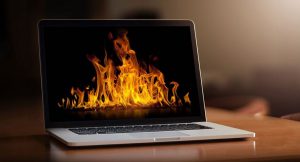 of the MacBook processor is between 45 ° and 60 °. In some cases, it can go as high as 65-70 °, but these are exceptional cases, for example, when you are using rather heavy apps. If you think your computer is too hot, the first thing to do is monitor the temperature of the Mac and conduct the following procedure.
MacBook overheating is often caused by too many apps open at the same time. Other times, the temperature can rise due to a malfunction of one or more applications that consume too many resources, thus weighing on the processor, which begins to use more energy and generate more heat.
Fortunately, identifying and closing apps that consume too many resources is quite simple, thanks to the “Activity Monitor” tool.
Closing unused browser tabs can fix MacBook overheating issues. Having many browser tabs open not only significantly slows down your Mac but negatively affects your productivity.
Many Apple users also prefer to install third-party web browsers, such as Firefox, Opera, or Google Chrome. These apps, not being optimized for macOS like Safari, consume a lot of resources (especially Chrome).
Although the Mac guarantees a relatively high level of security, it can still happen to receive malware, especially if the macOS is not up to date. Viruses and malware are everywhere and can hide in different places, such as software downloaded from the network, shared files, torrent files, browser extension, and websites.
Malware could be the cause of your Mac slowing down and overheating. Install an excellent anti-malware that can scan the system and possibly identify and remove the malware present on your Mac. Choose a software that is not limited only to remove malware but also prevent any future attacks. You can also restart your Mac and confirm if the fan is working correctly.